
Install guide
Putting it on the counter phone.
Six steps, about ten minutes. Android will interrupt you twice with warnings that look alarming — both are explained below, in the order you will meet them.
Do all of this on the phone that will sit at the counter, not on your own phone or a computer. That phone is the one that has to hear the bank.
Before you start
- A phone running Android 9.0 or newer. Phones only — there is no tablet build, and no iPhone version.
- The banking app already installed and signed in on that same phone, with its notifications switched on. LaariAlert has nothing to listen to otherwise.
- The download link for the app file. LaariAlert is not on any app store — the link is sent to you when you buy it. How to get it.
- Roughly 28.0 MB of data for the download, and somewhere to plug the phone in. It is meant to stay on and plugged in at the counter.
-
Step 1
Open the download link on the counter phone
Tap the link in whatever browser the phone uses. The file is about 28.0 MB, so on a slow connection give it a minute. When it finishes, the browser will ask whether you want to open it — say yes.
If nothing seems to happen, look in the phone's Downloads folder and tap the file called
laarialert-latest.apkthere.
Browser download The browser asks before it starts. The file is named laarialert-latest.apk. -
Step 2
Allow your browser to install apps
Android will stop you with something like “For your security, your phone is not allowed to install unknown apps from this source”. This is normal and it is not about LaariAlert specifically — Android asks this the first time any app is installed from outside an app store.
Tap Settings on that prompt, turn on Allow from this source, then press back. The install carries on where it left off.
Worth knowing
You are granting this to the browser, not to LaariAlert. If you would rather not leave it on, you can switch it back off in Settings › Apps › Special app access › Install unknown apps once the install is done.
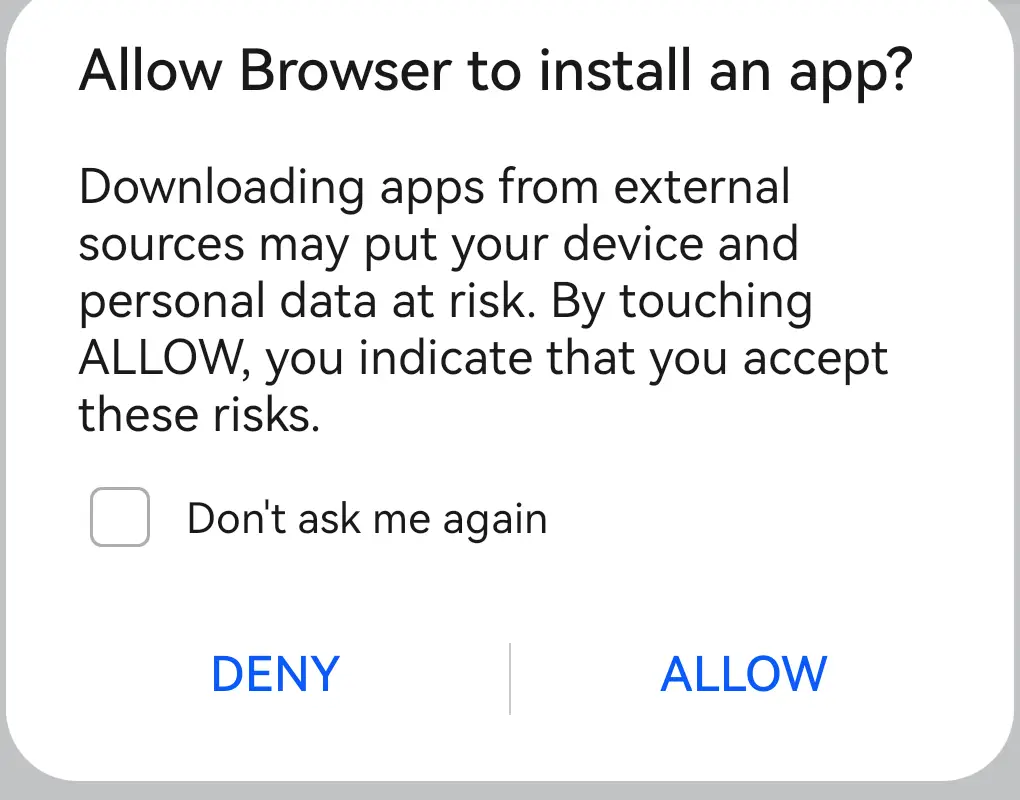
Allow this source Android asks once, for the browser rather than for LaariAlert. -
Step 3
The Play Protect warning — what it actually means
Google Play Protect may show a warning: it does not recognise the app, and it will offer to cancel the install. Read that screen carefully rather than rushing past it, because you should be suspicious of files from strangers.
Here is what it is telling you, plainly:
- The app is unknown to Google, not unsigned. LaariAlert carries its own signing certificate. Google has not reviewed it because it was never submitted to the Play Store — that is the whole of the warning.
- Android checks the signature from then on. Once installed, the phone will refuse any future update that is not signed with the same certificate. That is what stops someone slipping a different app onto the counter phone later.
- Updates are checked before they install. Each one is downloaded over an encrypted connection and matched against a published fingerprint first.
To continue, choose the option to install anyway — the exact wording varies by phone, and on some it is behind More details.
This warning will appear again
It shows up for any app installed outside the Play Store, and it is not a sign that anything went wrong. It is not a claim about this app in particular.
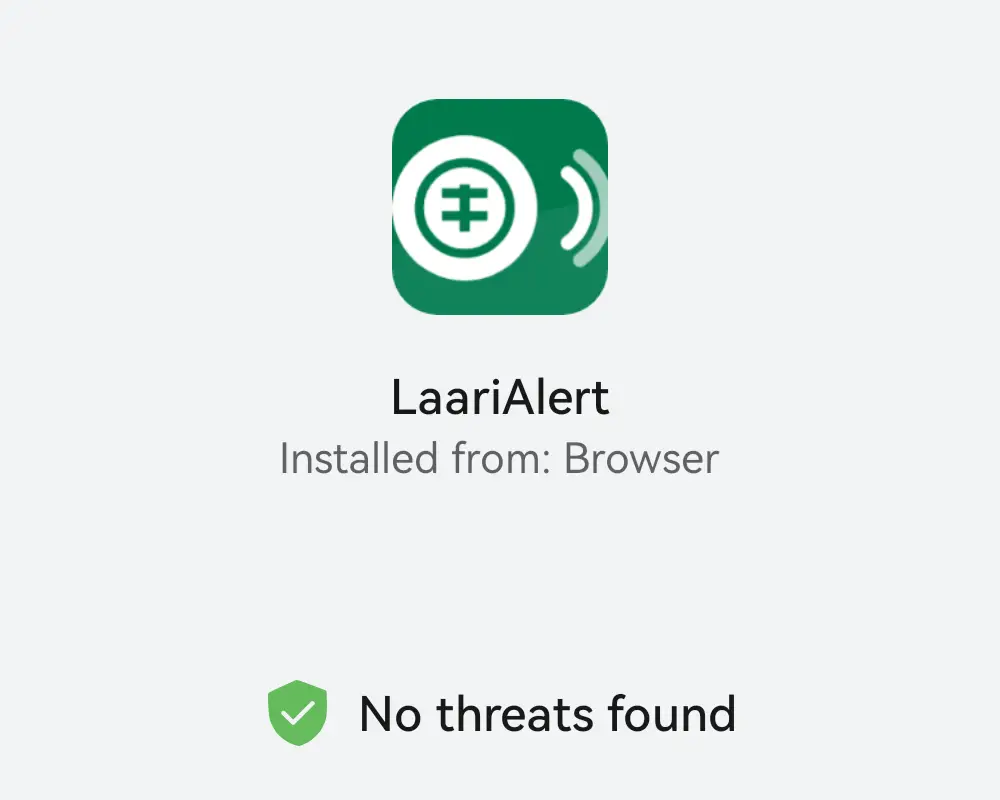
The installer's check A Huawei scans it and reports no threats. A phone with Google Play shows a Play Protect warning at this point instead. -
Step 4
Give it notification access
Open LaariAlert. It walks you through what it reads before it asks for anything, then sends you to Android's Notification access screen. Find LaariAlert in that list and switch it on. Android will ask you to confirm.
This is the permission the whole app rests on: it is how the bank's own notification reaches LaariAlert. It is also the one worth understanding before you grant it — what it can see spells out exactly which apps get read and which never are.
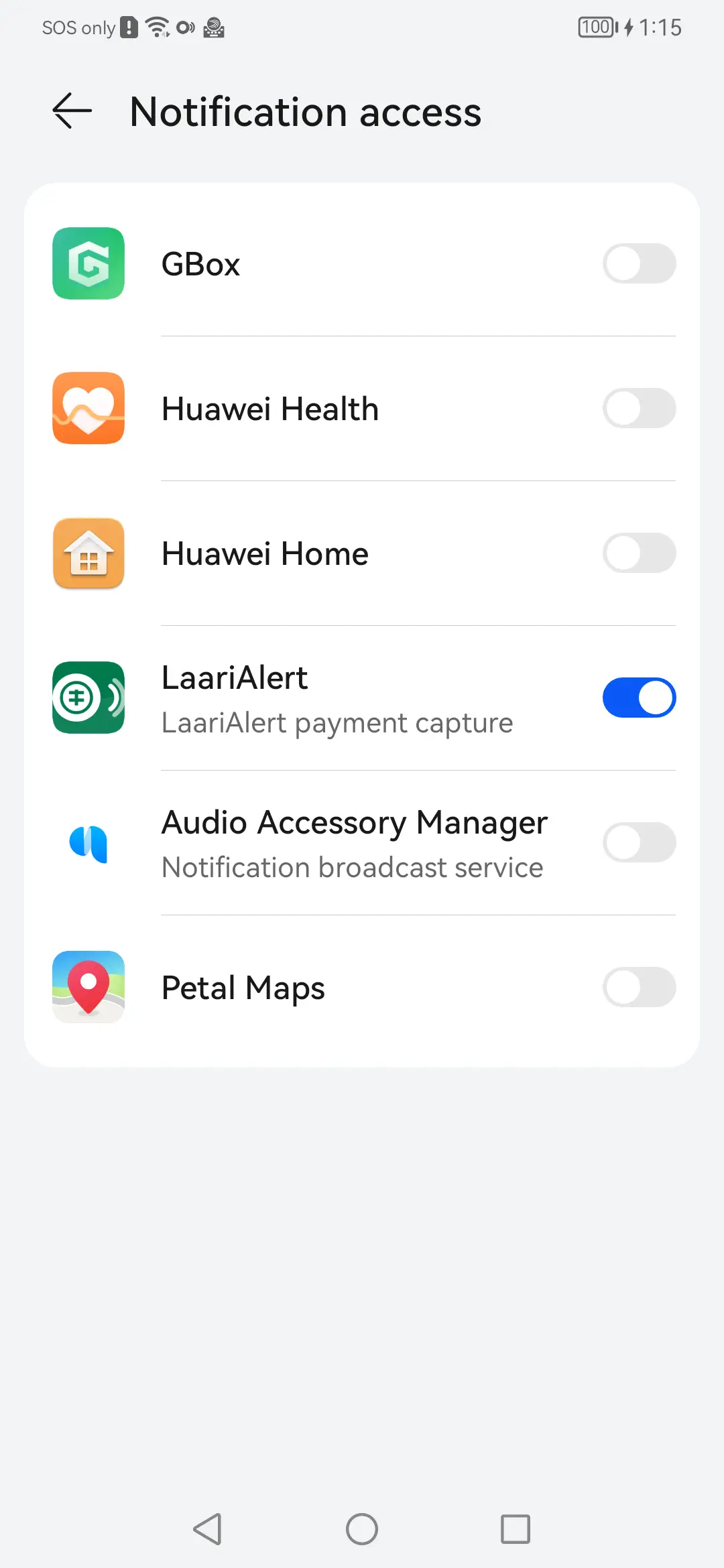
Notification access LaariAlert switched on in Android's own list. Nothing works until this is done. -
Step 5
Let it survive the battery manager
This is the step people skip, and it is the reason apps like this go quiet after a few days. Phones aggressively shut down background apps to save battery. If that happens to LaariAlert, payments arrive with no chime and nobody notices until a customer is waiting.
The app has a guided walkthrough for this — follow it. There are two parts:
- Battery optimisation. LaariAlert asks to be left alone by the battery manager. Allow it.
- Autostart. On many phones sold here — Xiaomi, Oppo, vivo, Realme, Samsung — there is a separate autostart or background permission buried in the manufacturer's own settings. The walkthrough points you at it for your phone.
Keeping the phone plugged in at the counter helps here too, on top of the obvious reason.
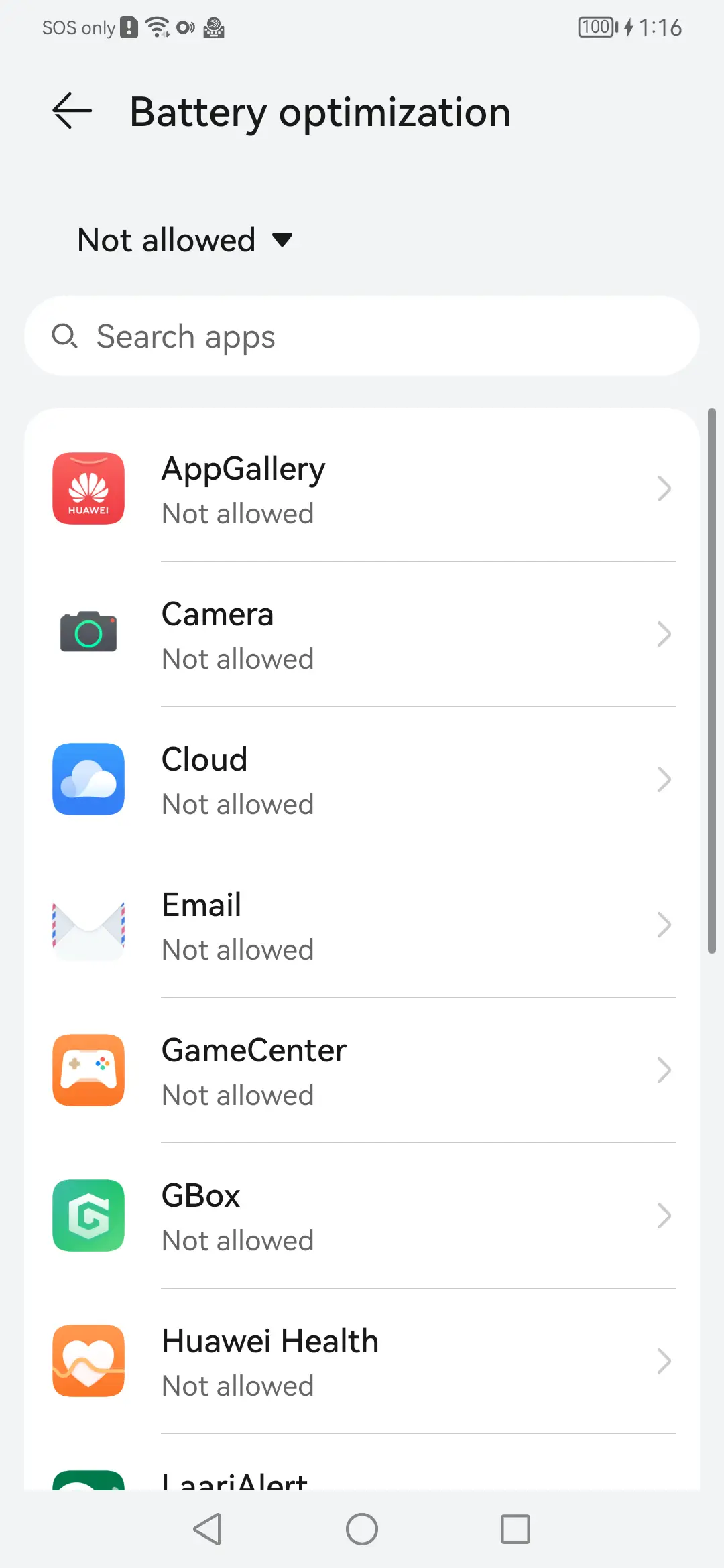
Battery optimisation Set LaariAlert to Not allowed here, so the phone stops putting it to sleep. -
Step 6
Tick your bank, then test it with one rufiyaa
In which apps to watch, tick the banking app your shop actually receives money in. Nothing that is not ticked is ever read.
Then prove it works before you rely on it: send one rufiyaa to the shop account from another phone and listen for the chime. If you hear the amount spoken, the counter phone is ready.
If the chime does not come
- Check the bank's own notification actually appeared on that phone.
- Check the banking app is ticked in LaariAlert.
- Open the capture health screen — it shows whether LaariAlert is still listening.
- Go back through step 5. It is nearly always step 5.
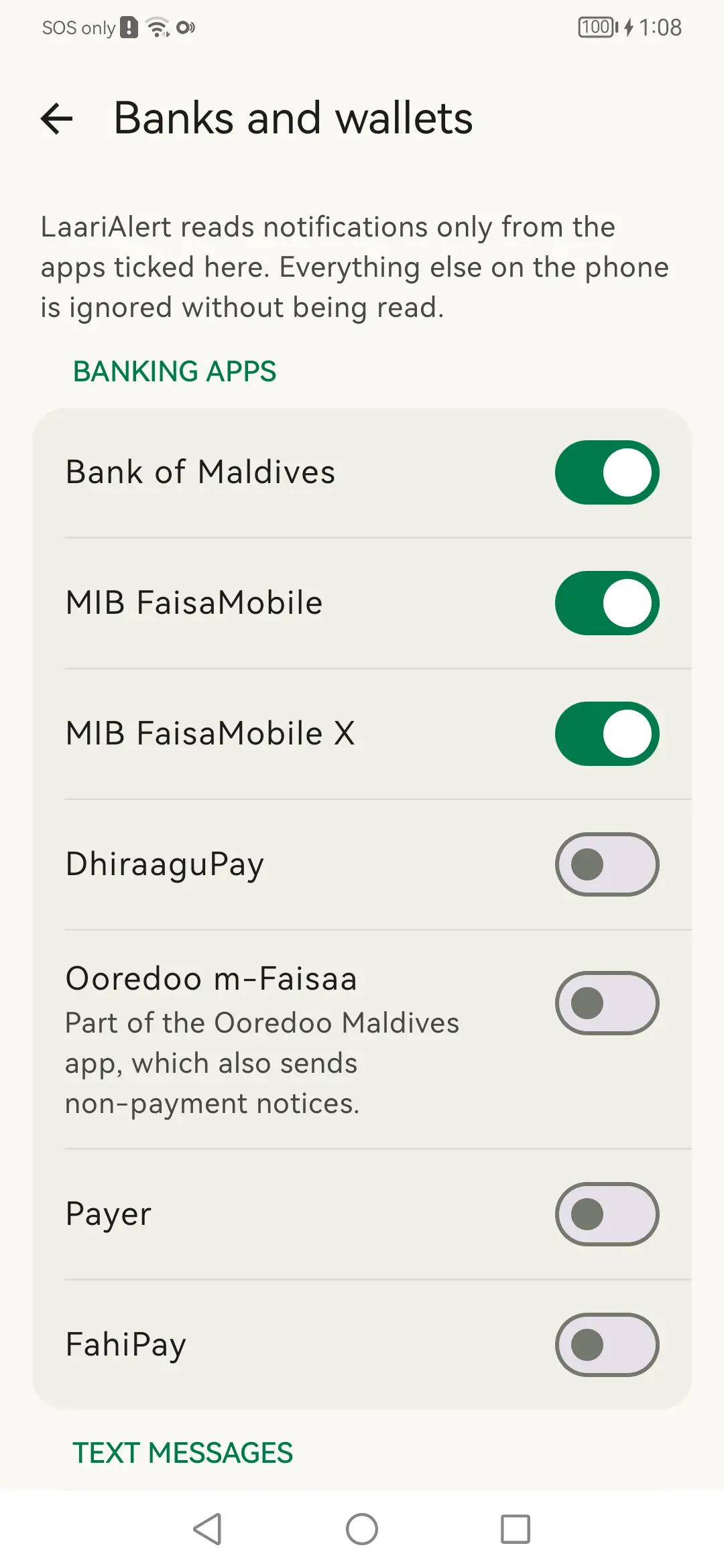
Banks and wallets Tick your own bank. Anything not ticked is discarded before it is read.
Afterwards
You should only have to do this once.
From version 2.6 onwards the app looks after its own updates. It checks daily, downloads a new version in the background while nobody is waiting on it, and then holds it ready.
Installing an update still takes one tap from you — Android always asks before an app is replaced, and it will refuse anything not signed with the same certificate as the app already on the phone. The download is automatic; the install is not.
The only reasons to come back here are a new counter phone, or a phone that has been wiped.
Stuck on one of these steps?
The battery and autostart step is the one that catches almost everyone, and it works differently on every make of phone.